With the move to the Power Platform Admin Center (PPAC) for managing new D365FSC environments there is a change to how we can deploy code to these environments. There are a bunch of great resources showing this option for local customizations, but I have not found similar resources if you as an end user get an already compiled solution from a 3rd party / ISV.
Below are the options I’ve found so far and some things to look out for, but I’m also curious on how others are performing this process?
Deployable Package vs Unified Package
The first thing I want to point out is that the legacy deployable package that we used within LCS cannot be used directly within PPAC as PPAC utilizes what is called ‘unified packages’.
One nice process to know about is the ability to convert a deployable package to a unified via using the ModelUtil.exe and the following command:
ModelUtil.exe -convertToUnifiedPackage -file=”C:\{pathToPackage}\[DeployablePackageFileName].zip” -outputpath=”C:\{pathToOutputUnifiedPackage}”
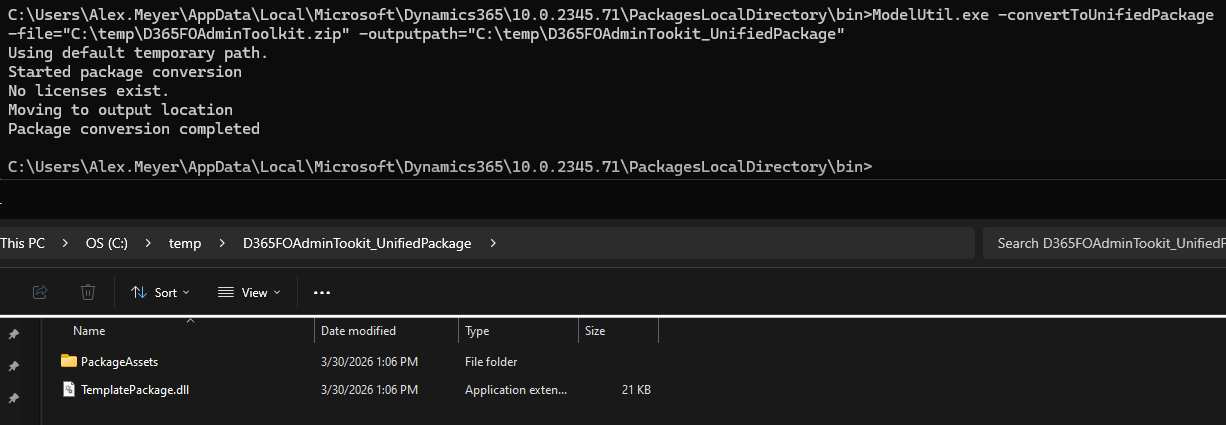
Deploying a Unified Package
There are 3 distinct options I have found to do this:
1) Add the Unified Package directly to source control
The unified package can be added to your Azure DevOps pipeline for deployment along with other customizations or custom code following the steps in the Microsoft documentation:
2) Manually copy /bin folder contents
You can manually copy the pre-built module code for each module contained in the unified package
- In the PackageAssets folder of the unified package you will be able to see the individual Fastpath modules listed
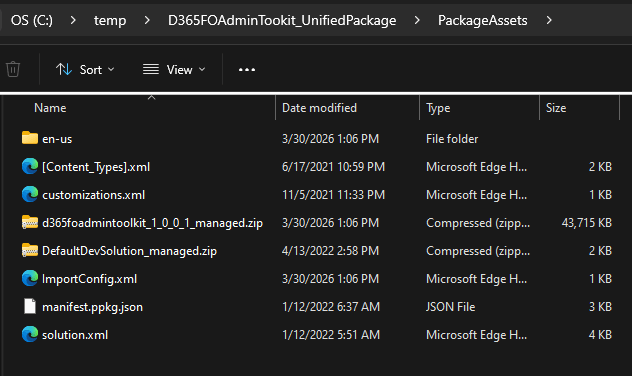
- If you unzip each module you will still see the normal model (bin and Resources folders) just like you did with a deployable package. You can then copy the model files/folders to your custom metadata folder for your UDE:
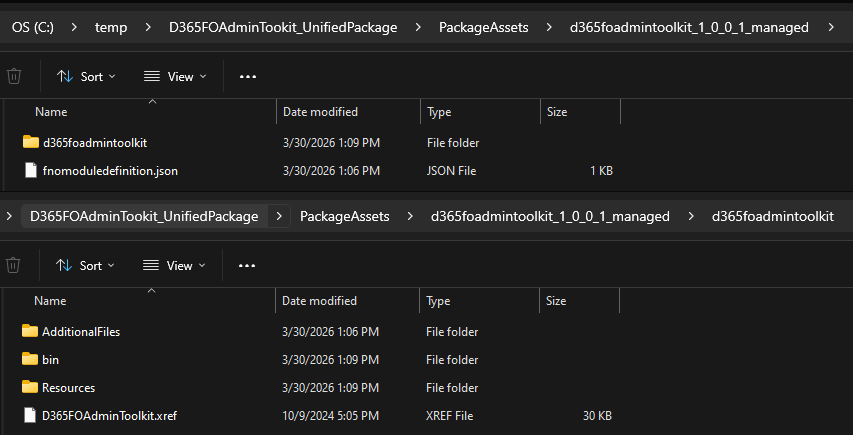
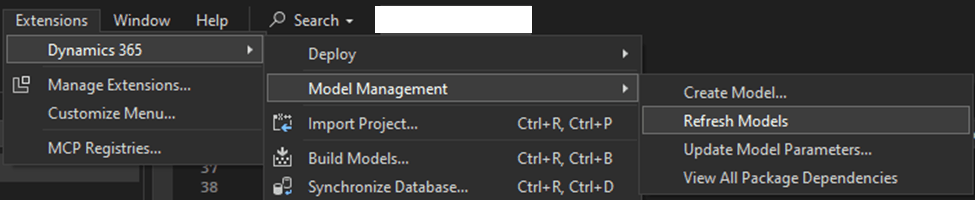
- Once the model folders are copied to your custom metadata folder you should Refresh Models, your UDE instance should now be able to see the new model
- You then should be able to publish the model to an Online Environment

3) Install package via PowerShell command
Within your UDE environment, launch a PowerShell terminal and perform the following commands:
Step 1: Authenticate and connect to your UDE instance (CRM environment URL string can be found from PPAC environment page)
pac auth create --environment https://[CRMenvironmenturl].dynamics.com
Step 2: Deploy the package
pac package deploy --logConsole –package C:\{PathToUnifiedPackage}\TemplatePackage.dll
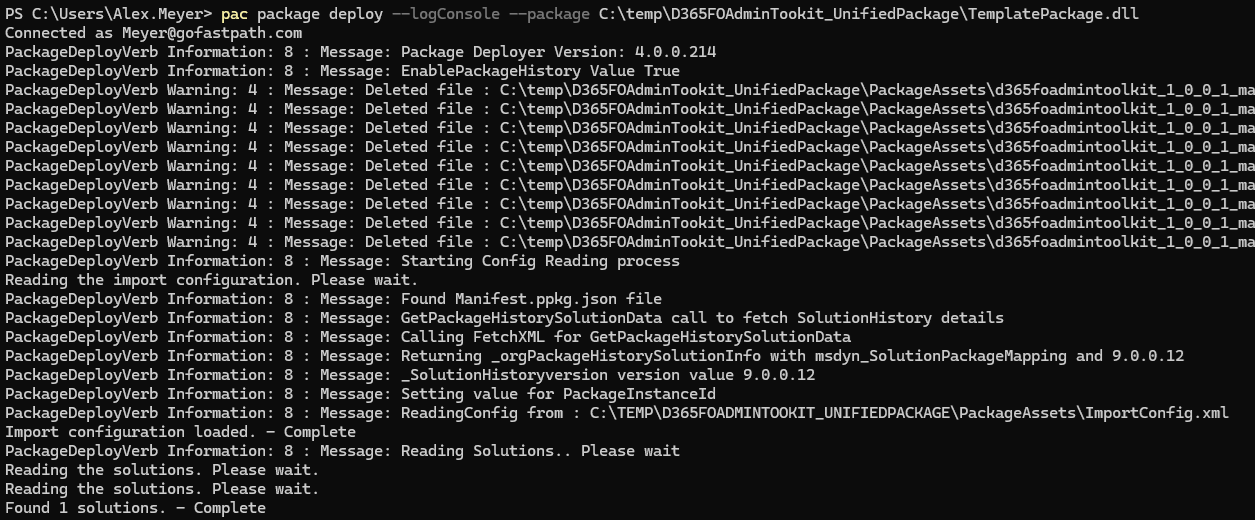
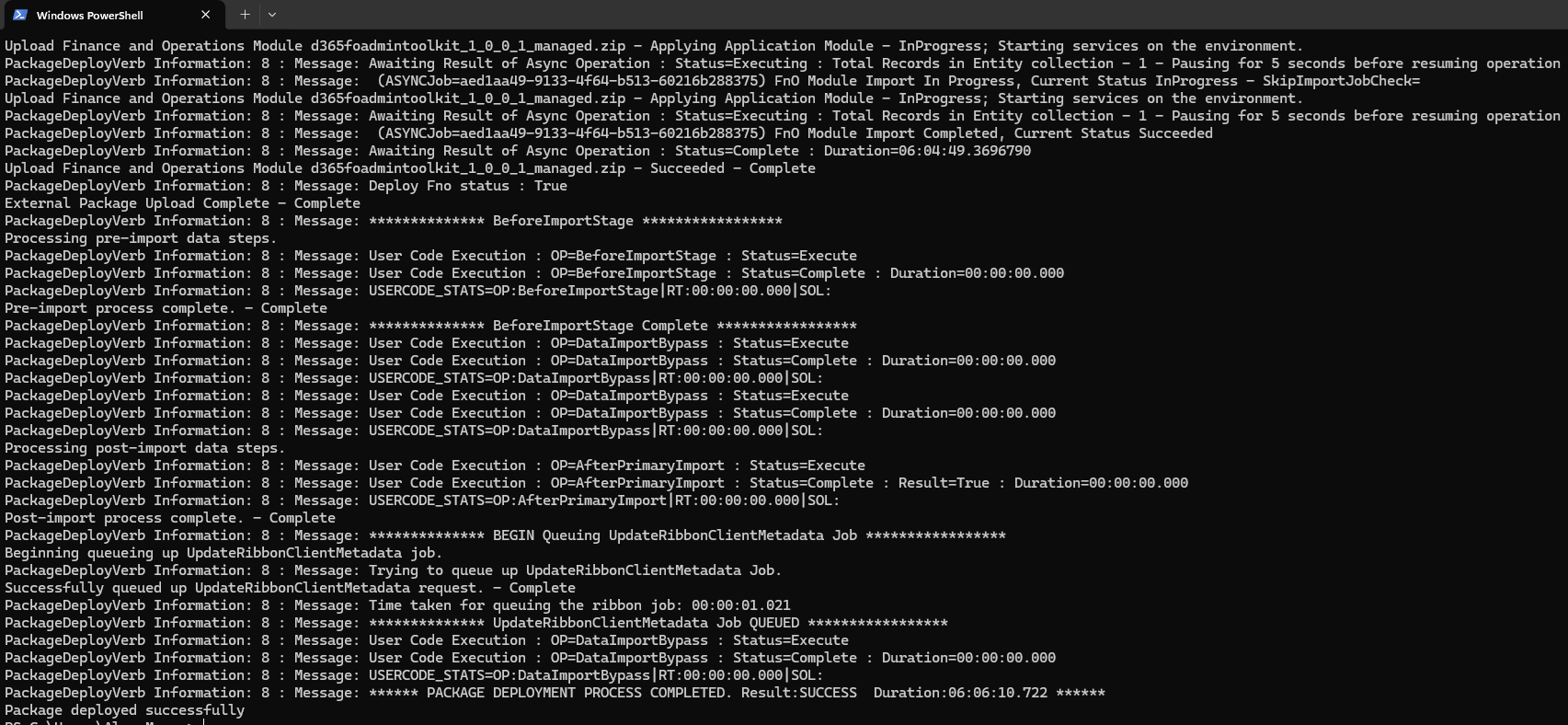
Note:
These commands require the Microsoft Power Platform CLI, more information on installing it can be found here: https://learn.microsoft.com/en-us/power-platform/developer/cli/introduction
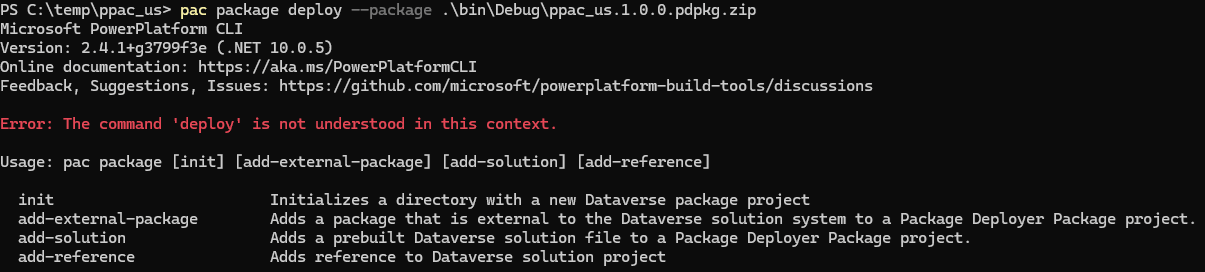
Be sure to also install the Windows PowerApps CLI MSI, otherwise you will run into the ‘The command ‘deploy’ is not understood in this context’ error:
Reference guide for the Power Platform CLI: https://learn.microsoft.com/en-us/power-platform/alm/package-deployer-tool
Other Resources
Special thanks to Aurélien CLERE and André Arnaud de Calavon for their contributions to the community and sparking the idea for this post.
https://www.powerazure365.com/blog-1/dynamics-365-finops-unified-developer-experience
https://community.dynamics.com/forums/thread/details/?threadid=9de8ac8f-e6a8-ef11-8a69-7c1e525c7051
Engage thread I posted on the same topic: https://engage.cloud.microsoft/main/org/microsoft.com/threads/eyJfdHlwZSI6IlRocmVhZCIsImlkIjoiMzc4NTg0NDAzNzEwNzcxMiJ9